
iRaven // Preen
Preen
Frees disk space and memory on your Mac, and shows and resets what each app is allowed to do.
Preen lists everything it finds with its size, and removes only what you confirm. What you may want back goes to the Trash.

What it does
Programs fill a Mac a little every day: caches, logs, build data, old simulators, the disks of virtual machines, AI models. macOS shows most of it as one bar with no detail, so you cannot tell what you can remove. Many people do not trust a cleaner with that choice.
Preen scans your Mac, lists everything it found with its size, and waits. You choose, Preen cleans, and it reports what it did. What you may want back goes to the Trash. Preen is made for a developer's Mac, so it knows the caches, logs and build data that gather there. It comes as a window app, Preen.app, with an item in the menu bar, and as a command line, preen. Both use the same engine: the part that holds every rule and does every removal.
Preen is free to install and use. Its source can be read at gitlab.com/koushamad/preen, under the Microsoft Reference Source License: it may be read, and it may not be changed, built on or distributed. Versions up to 0.1.1 were released under the MIT licence.
Download
Download PreenPreview
- Installer39.4 MB (39,442,917 bytes)
- Disk image41.5 MB (41,502,930 bytes)
- Version
- 0.2.0
- Each file needs macOS 14 or later and serves Apple silicon and Intel Macs.
- Each file is signed with a Developer ID and notarized by Apple, with the ticket stapled. It opens with no warning beyond the usual question about a file from the internet.
- Preview: the new features of 0.2.0 and some real removals are not yet tried on a real Mac.
Check the download
Preen-0.2.0.pkg46ed926742aced46366f3b24a5cc818190043f21027f1eacc7550992b6fb00e4Preen-0.2.0.dmg462621bfb4099db0964c8823d01d8cd367f3ac441ed20ba8fdeccfaa679a4045
To check a file, run shasum -a 256 on it in the terminal. It prints the value shown here for that file.
How to install
With the installer (recommended)
- Download Preen and open the file. The installer puts Preen in the Applications folder. macOS asks for an administrator password, as it does for every installer.
- Preen opens on a short setup with two steps. Each step has one button and ticks itself when it is done.
- Full Disk Access. Press Open System Settings and switch Preen on in the list. macOS may ask to quit and reopen Preen; say yes. Without this, some folders cannot be scanned.
- Administrator helper (optional). Press Install Helper, then Open Login Items Settings, and switch Preen on under "Allow in the Background". macOS asks for an administrator password, which Preen never sees. With the helper, Preen can also scan and clean system caches, system logs and system crash reports, uninstall apps that need an administrator, and change the startup items of the whole Mac.
- When both steps are done or skipped, press Start Your First Scan, or Not now to close the setup.
macOS lets only you switch these two on, and no installer can do it for you. Both can be skipped and done later from Preen's Settings.
With the disk image
Open the image, drag Preen to the Applications folder, and open Preen from there. The same setup appears. The helper works only when Preen is in the Applications folder.
Remove Preen
In Preen's Settings press Remove Helper, quit Preen, and move it to the Trash.
The command line is inside the app, at Preen.app/Contents/Helpers/preen. Preen's source can be read for reference. Its licence does not allow anyone to build it or change it.
Features
-
Overview
One full scan of your Mac that ends in one plan and one button.
-
Junk files
Caches of apps and browsers, logs, crash reports, old installers in the Downloads folder, mail downloads, backups of phones and tablets, and the Trash.
-
Developer data
Xcode data, simulators and their runtimes, package caches, and the build folders of projects. Preen removes some of it with a command of the program it belongs to, not by deleting its files.
-
Virtual machines and AI models
The disks of virtual machines and the AI models kept on your Mac. You confirm each one on its own.
-
Applications
Uninstall an app together with the files it left in the home folder, reset an app by removing its data and keeping the app, and find what removed apps left behind. An uninstall offers to quit the app first. It also stops the app's login items and launch agents (programs that macOS starts in the background for the app), and resets its privacy permissions where macOS has a supported way. Apps that macOS keeps, such as its own web browser, are listed with the reason and never offered.
-
Permissions
Which privacy permissions each app holds, with a reset for each app. Preen also lists the permissions held by apps that are gone and by command line tools, each with a button to the right page of System Settings. On macOS 27, macOS keeps your own privacy choices in a new place, and Preen reads them there with Full Disk Access.
-
Startup
Login items, launch agents and launch daemons: switch one off or on, or remove a broken one. Each item shows the privacy permissions of its program, such as Full Disk Access. With the helper, Preen also lists the items that run for every account on the Mac and says who signed each program. It can switch such a launch daemon off and on, and remove such an item whose program is gone.
-
Harmful apps
Coming soonCheck whether an app on your Mac is known to be harmful, and what it added to your Mac's startup.
-
AI agents' files
Coming soonCheck the files that steer your AI agents (rules, memory, tool settings and skills) for content that someone else put there.
-
Memory
The memory figures, the apps that use the most, a way to quit one app, and emptying the file cache.
-
Menu bar
How much memory and disk is in use, with a button that empties the file cache and one that starts a full scan.
-
Administrator helper
A small helper that you approve once in macOS, so that Preen can also scan and clean system caches, system logs and system crash reports. Since 0.2.0 it also uninstalls apps that need an administrator, switches the launch daemons of the whole Mac off and on, and removes a startup item of the whole Mac whose program is gone. It moves what it removes to your Trash and never deletes it. Every clean still shows first what it will do. Restore puts back a moved item of up to 256 MB and 100,000 files; a bigger one, such as most apps, stays in your Trash, where you can drag it back.
-
More system places
Through the helper: apps that need an administrator, such as most apps from Apple's app store and apps made for phones and tablets, are uninstalled with their files in the system's Library folder. Preen stops their background services first. What removed apps left in that folder is listed too, and none of it is ticked for you.
-
Files
Coming soonLarge and old files first: that part is built and not switched on yet. Then duplicates, the Downloads folder and the sizes of folders.
-
Watching files
Coming soonA goal: to watch files as they change and stop harmful ones, as security programs do. It needs an entitlement, a permission that Apple grants on request, and Apple has not granted it.
-
Start at login and alerts
Coming soonPreen starting when you sign in to your Mac, and alerts from the menu bar item.
How it works
-
Nothing is hidden
Every finding is listed with its size, and so is a group that is empty or that Preen could not read. You can look at each finding before anything happens.
-
What can be put back goes to the Trash
A finding that you may want back goes to the Trash. Preen deletes caches, logs and crash reports, which programs make again, and the confirmation says so. For other kinds, deleting without the Trash is a choice for one run. Preen never remembers that choice, and a failed move to the Trash never becomes a delete.
-
Every clean is a plan
Before a clean, Preen shows a plan: what will go, how many items, and how much space. You confirm it. A plan runs once, and it expires 15 minutes after its scan.
-
Some places are never touched
Protected places, such as keychains, mail, messages, photos, calendars, contacts and secret keys, are never removed. An item whose app is running is left alone until the app is closed. Right before a removal, Preen checks that each item is still the one it scanned. Every action is written to a log.
-
The command line changes nothing unless told to
On the command line every clean is a dry run: a run that only says what it would do. Only
--applymakes it remove anything.
What the window looks like
The pictures show the window with example data, not the files of a real Mac.
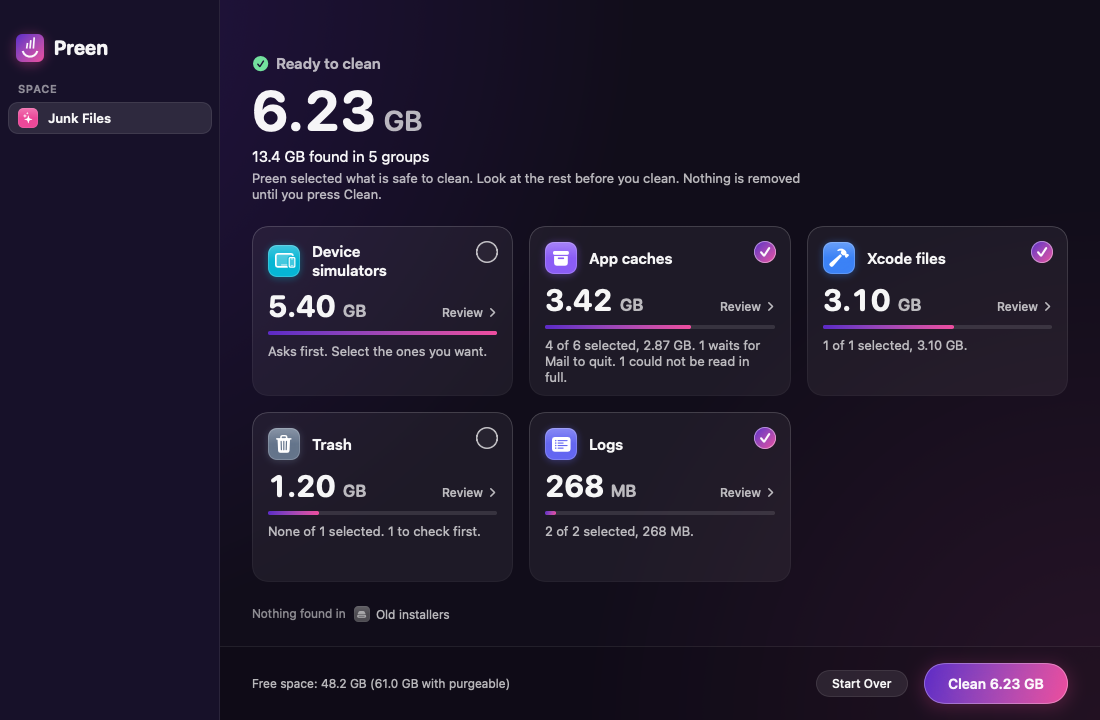
The results of a scan, with sizes 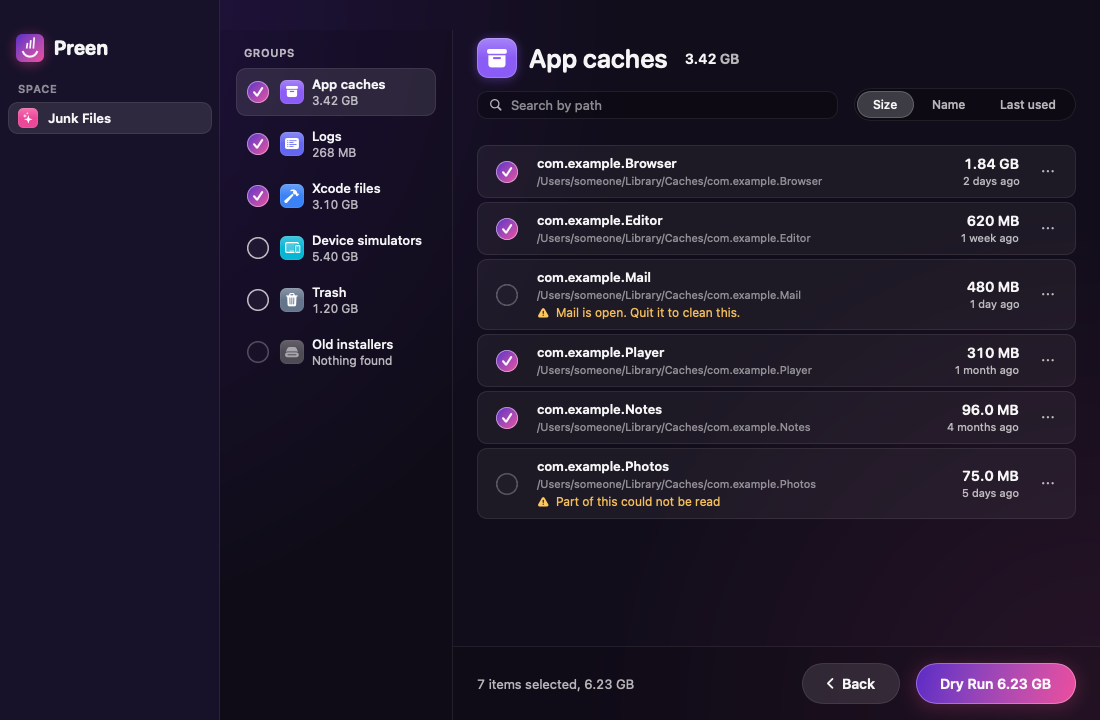
The review of one group 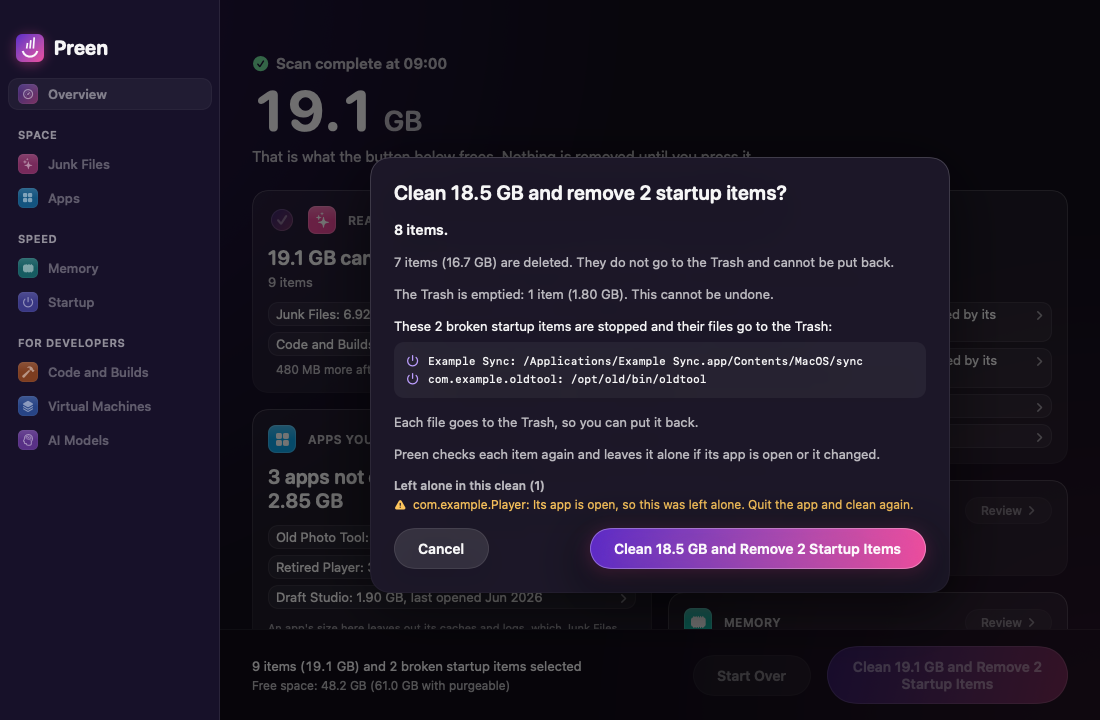
The plan, before it runs 
An uninstall that quits the app first 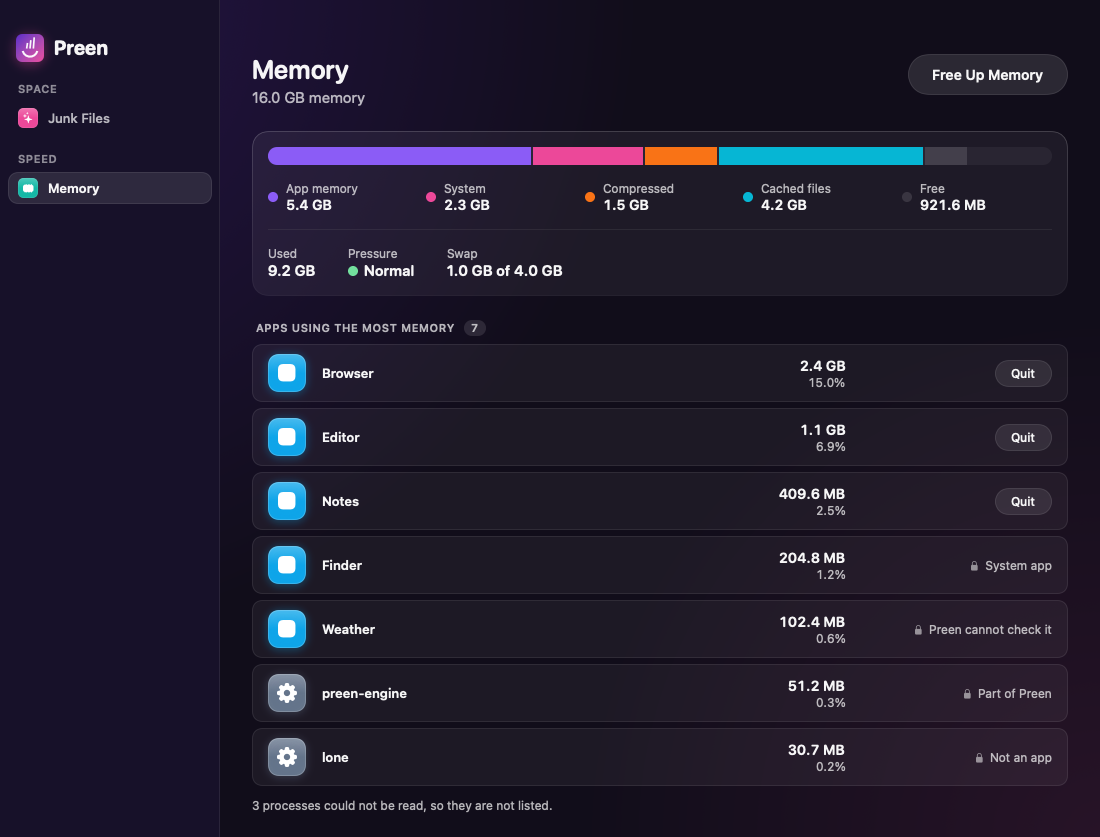
Memory 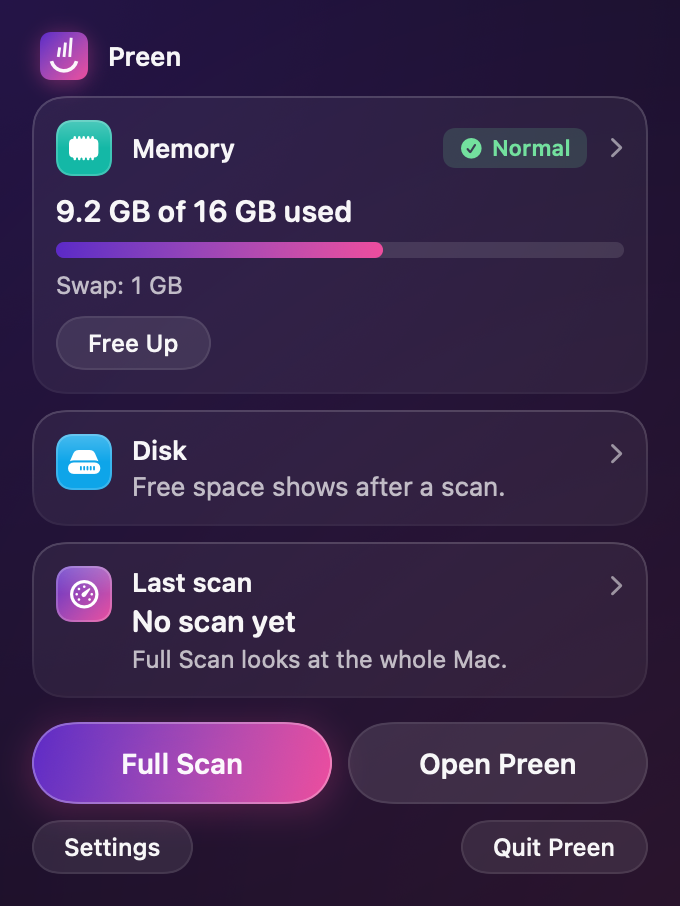
The menu bar item
What is not yet tried on a real Mac
Preen is a preview. On a real Mac, these have been tried: the scan of junk files, installing the helper, the helper's scan of system places, and finding where macOS 27 now keeps your own privacy choices (reading them was not tried yet). The installer of 0.1.1 was tried once, over an earlier version on a Mac where the helper was already approved. The installer on a Mac that never had Preen has not been tried yet. Everything else passes Preen's own tests but is not yet tried on a real Mac: a real clean, a real uninstall and reset, quitting an app, emptying the file cache, changes to startup items, the Overview, the reset of permissions, the menu bar item, and every clean and Restore through the helper. That includes everything new in 0.2.0, such as the uninstall of apps that need an administrator, the startup items of the whole Mac, the permissions of apps that are gone, and the installer's new pages.